Proofreading demo
What goes through a proofreader’s mind at work? In this demo, we listen in on the proofreader’s inner monologue. Note
that errors were added to this page for the demo and you may have seen it if you started with the free demo class. (This demo is posted elsewhere, so you may have seen it already.)
Transcript
My name is Adrienne Montgomerie, and I’m going to do a live proofreading demonstration so you can see what a day in the life of a proofreader might be like. On screen I have a sample page from the first printer’s run of an imaginary printer’s run. This is from the book called The Editor’s Companion. I have added errors to it for the purpose of this demonstration; the real book does not have errors in it. I also have open an imaginary style sheet that my imaginary copyeditor has sent to me. This is very rudimentary for our purposes, and they’ve arranged it in strict alphabetical order, much like AP Style/ Associated Press does. It works for this instance. There are other ways of doing style sheets but we’re not talking about that.
So with those two documents open, I’m going to start today with a straight read-through of the text, and I’ll do a later second pass for looking at design elements. That’s just the order I feel like doing it in today. It helps to group them, but it doesn’t really matter which order you do it in. I’m going to activate the markup tools by clicking “Comments” on the right. And I’m going to maximize my font size by closing this border—by clicking on it. And that gives me maximum width. Now I will start reading.
“Online” with a hyphen; that’s unusual. I’ll check my style sheet. It is on there, so we leave it and continue reading.
Oh straight quotes—that’s unusual. Usually they need to be curly, so I’ll check the rest of the document. It looks like we’re using curly quotes, so I will mark this up to be curly. I’m going to use something close to the traditional proofreader’s marks today. In another demo I’ll show how to use the “Annotation” tools.
My production note is made distinct by colour and also by including (sorry) enclosing the instructions within square brackets so they know they’re not supposed to insert the word “curly,” they’re supposed to make something curly here.
Now I’ll continue reading.
Oh, here we have the words “two jobs” and then two items listed, so I’m pretty sure this should be a colon, not a semicolon. I’m going to use this mark to make it so. My production person knows that that means to change what is there to the mark that I’ve shown. I could also write it in the margin. There’s only one change there, so that’s fine. I’ll continue reading.
Oh, “wrote Rufus.” And there’s no closing quote marks. I think that this is the end of the quote here, right after the comma. So I’m going to insert new quote mark just using the pencil tool to draw that. And again, I can put it in the margin. And, because, I know my designer very well, I trust them to make this one curly without me telling them—since I’ve just said to make the other one curly. I’ll continue reading.
Oh, a name! “Rufus Griscom”; is that spelled right? I’ll check the style sheet. Oh, their name’s not on here, so I’m just going to jump into a rabbit hole online where I copy this quote and then paste it into a search online, along with the name Rufus and see if I can come up with the right name.
Okay that looks right, so I’m going to add this spelling for my own reference to the style sheet so, if it comes up again, I know it. I’ll continue reading.
“Babel,” that’s the name of a website. Okay, is that the right name? Little search— yes, it is. Um, I can add that. Oh, there it is on my style sheet, great. But should that be in italics or between quotation marks? I’ll check my style sheet again. Initial cap only, no other treatment. Okay, so that’s fine; continue reading.
Oh, “distribute”—that’s— that’s not where we would prefer a break. I might have caught this in a later pass but since I noticed now I will just mark it up. I would rather that the break come before the T because that’s where it shows in our preferred dictionary. So I’m going to put the slash there and I’m going to use my Callout/ Text Callout, write the bad break notation, and my designer knows that I have indicated where the preferable break for that word is. I’ll move this out of the way, make sure it’s pointing to the right thing, and continue reading.
- That’s probably a reference. I’ll see how references are handled in the rest of the book—we’ll, imagine I flipped through a few pages—I see another reference here as superscript so I’m going to indicate with a mark that that should be turned into a superscript—simple upside down carrot is the way—and then I’m going to add my duplicate notation, “sup” in the side/in the margin, and continue reading.
Oh, this is unusual. We wouldn’t normally have an em-dash start a line so, I’m going to indicate that this is a bad break and maybe also a “close up” because I see, on the style sheet, when it comes to dashes, the em should be unspaced. So I’m going to copy— I’m going to just copy my “bad break”— Oh yeah, I’m going to adjust this box because now I see part of my notation’s cut off.—I copy that with the keyboard shortcut and then paste it, and move it; there we go. Keep on reading!
A straight apostrophe; looks like we’re using curly in this document/in this book, so I’m going to repeat my instruction using copy and paste to make this simple, and continue reading.
Well there’s a misspelling. That shouldn’t be “fare” that should be — oh not that one — that should be ‘fair”. I’m going to delete this word because it’s not a “tariff” it is even-handed, and I’m going to use the Text Box to write the word I want put in it’s place. This text box looks distinct from the instructions so they should know that this is a word to be inserted not an instruction. And I’ll continue reading.
This is a weird break in the middle of this sentence. I’m going to indicate to close this up. I could add a “delete” over that mark; I think my designer will know what to do there. And I will add my note for my double entry that says the short form for “close up.” Resize.
I don’t have a Stamp for “close up” but that might be something I want to add. You can choose from Stamps and that would be easier, say if I had “cap” like that, I could just insert my— if it said “close up,” I could insert that instead. That’s something I’ll change before I continue tomorrow. Keep reading.
Oh, here’s a name. All right, check my style guide, see if that’s right. Oh, “Steven” should be spelt with a “ph”. All right let’s use a pencil mark to get rid of the “v” and I will put a “ph” in its place. Get up close to the line.
Oh that footnote mark looks right, and then this looks like a blockquote because of the colon. Let’s see if this is the right style. Quotes, quotes; long quotes indent both sides no quote marks. All right, so this needs a bit of markup. We’ll get rid of the quote mark and we will indent both sides and center. Now reading it I see some spacing errors! We’ve got here, uh here— the ligature “fi” is fine but there shouldn’t be a space before the “t.” Oh and here the “t”/ligatures caused a problem here. Just space beside. And since it’s space within words, the note I will add is “kerning.” I will the leave the fix up to my very knowledgeable designer. I don’t need to tell them what/how to fix it, just to flag the problem.
All right! I’ve reached the end of my many-hundred-pages document, or the end of my day, or the end of my patience, so now I’m going to do a different kind of check. I’m going to check for design elements.
Looking at the chapter number: it is chapter two that’s correct. Editing for Content” is the correct title, however it looks like that this “o” in “for” looks weird. I don’t think it’s the right font or something; maybe it’s a zero. So I am going to tell them to replace that, or I could mark it up as wrong font I guess; but they’ll get it. Okay I’m going to look for— oh, here, I’m not sure how strict they’re being about stacks, but this might be one. So I’m using a coloured box to identify that, and I’m just gonna copy an existing thing/note and I’m going to put it in the right spot, and double-click to change the word to “stack.” [All right.] Or “not” I guess, that is if it’s in the middle.
What else do I see? Any more of these? Oh, I do. Okay so I’m just going to copy this to make it easier. I’m not sure how strict they’re being about parts of words, so this could be a two-line or a three-line stack. I’ll just copy again. Try not to extend my marks over top of the writing.
Looking for more bad breaks or stacks. Let’s see—I see another one, so I’m going to paste this right away. This is only two words on top of each other, so it seems a little picky to mark it up. But I’ll again I’ll let them decide.
Oh here’s one. That’s a doozy! Especially if we change that break—we’re going to end up with “baseball” three times. I’m just going to add an arrow here, so I should do the trick instead of adding another. Or maybe I’ll just tell my designer that these boxes mean stacks and I don’t have to write a letter or a second notation in the side margin at all. Okay, continuing looking for problem areas. Oooh!
I have to ask them if they want me to mark up rivers, but here’s a pretty good one. I’m gonna make it the width of an em so it’s obvious. Yeah it looks— yep that’s definitely a river. Let’s see— I will add my note; of course it’s not a stack, it’s a river.
Continuing on— oh here we have a bit of a lake in a margin. Let’s see. Mark this up with a pencil. I suppose a circle or other might do, too.
It’s technically a lake but I’m going to mark it up as— they know, they know that it’s a spacing problem. I’ll just attach it to the river, there. All right. So now I have to check the balance across the two. It looks like they end about the same place; that’s good. And checking the footer: “Editor’s Companion,” that is correct; page 21. Oh! Usually the number goes on in the outside edge of the page. So if this is a left-hand page, that should be an even number. So I’m going to insert—actually, yeah I’m not going to do that—I’m going to just add a note because maybe the designer needs to bump this to the right-hand page, which would be normal for the beginning of a chapter. Or maybe they need to change this number to 22 or 20; I’m not sure. Make that stick out the margin.
All right, there’s one other version of traditional markup. You’ll notice there’s no duplicate marks in the margins of this but all of the marks I made in this demonstration are still here. This requires the person to have access to the Comment list, which can be printed out as a separate document or a linked document, or they can use it onscreen. (There are demos on the site for that.) And for each I have entered into the text area for the pop-up and written what’s happening and, as with before, there are instructions between square brackets and simple inserts written as plain text.
Look at a couple of more of these. You’ll note that as I click on the comment on the right-hand side it gets selected on the side—including my page number.
Here is a final variation of this markup using the Annotation tools instead of the traditional proofreader’s marks. That means this set of Ts on the top of the Commenting toolbar instead of the pencil and shapes. Similarly to what the approach we used before, there’s a mark on the page and a pop-up note explaining what’s done. Now, some things couldn’t be marked up entirely with the [markup tools] the annotation tools so there are still some visible marks such as these blocks marking knots and rivers. And right down here at the bottom, marking centering, I use highlighting instead of floating Post-it notes so that it’s always attached to some text. And I see that right here there’s a small problem: that I don’t want to delete the whole “the,” I just want to delete the quotation mark and the space. But each time I do that, Acrobat is “helpfully” joining that delete and that’s not what I want. So to get around that, I am going to strike out the entire word. I’m just going to get rid of two marks so I don’t have that, and just retype. Now if my production department is using a macro or plug-in* to import all of these changes directly into the InDesign file, it’s very important that what I type in this space is exactly what I want to appear, complete with spaces and so forth. I will have to rely on them to insert the curly quotes instead of straight ones and so forth.
You may have noticed that just looking at this one page took 16 minutes for the first go-round. Proofreading is not reading, it is much slower.
Now I will send this back to the designer or my formatter/compositor person and they will input the changes into the master file which I think they’re using InDesign for, and then they’ll send me back what they’ve done.
For more tips on workflow, working with pdfs, and what to check in various stages check out the main blog [NOW SciEditor.ca].
Does it always take so long?
No. Narrating the thought process really slowed down the proofreading. Also, this is a heavier markup than what you’d hope to see at the proofreading stage, there are processes that are so rushed that you’ll encounter this many problems.
However! Proofreading is much slower than reading. While a typical adult might read 10,980 words per hour, a typical pace for proofreading is just about 2500 words per hour. (This is often expressed in pages but the number of words on printed pages varies wildly.) The pace can slow or speed up, depending on the following.
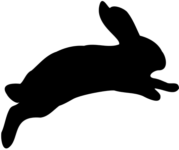
Faster if:
- few errors
- simple format
- nontechnical or familiar content
- clean copy
- no style queries required
Slower if:
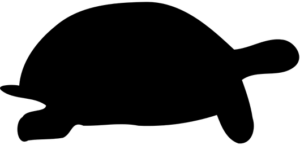
- many errors
- complex format
- copy is marked up
- style checks required (and more if unfamiliar)
- contains equations, symbols, or foreign characters/symbols
Need to estimate time for proofreading? Try our Instant Estimator!
Note: To import PDF markup into InDesign, no macro or plug-in is required. In InDesign, it’s simply an option under File > Import PDF Comments, or Window > PDF Comments > Import PDF Comments.